WordPress Website Maintenance: What Should You Actually Do?

Learn how to maintain a WordPress website with regular updates, backups, security checks, performance optimisation and essential maintenance tasks.
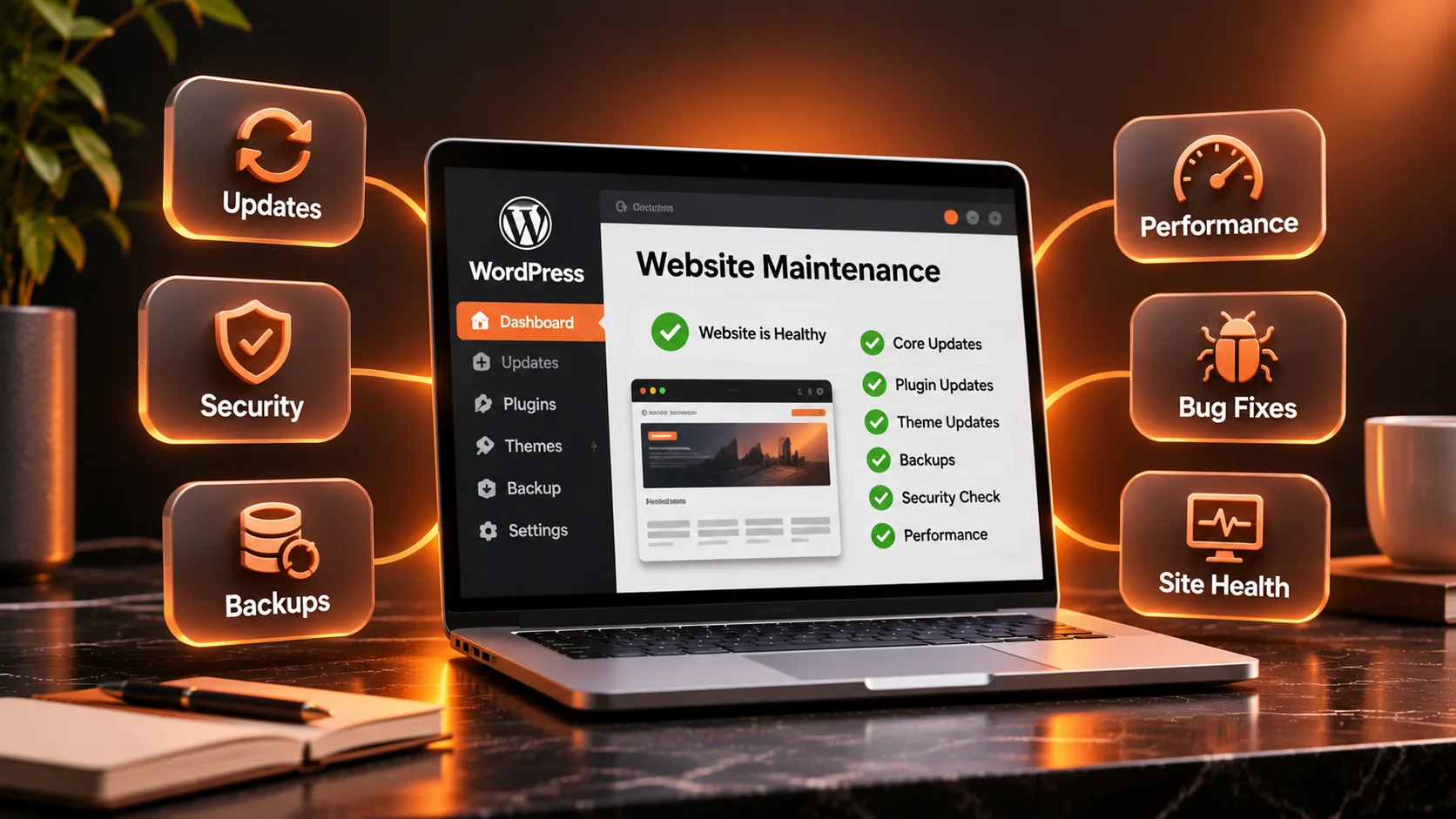
Cover image for the article: WordPress Website Maintenance: What Should You Actually Do?
Article
01
Keep WordPress Core, Themes and Plugins Updated
Regular updates are one of the most important parts of maintaining a WordPress website. WordPress releases updates to improve functionality, address security vulnerabilities and maintain compatibility with modern technologies. Themes and plugins also receive updates that may introduce new features, fix bugs or resolve security issues. However, installing every update without checking compatibility can sometimes create unexpected problems. Before updating important websites, create a backup and review the update details. Test major changes on a staging environment whenever possible. Keeping your website software updated reduces avoidable risks and helps maintain a stable development environment.
02
Create Regular Website Backups
A website backup provides a recovery point if something goes wrong. Accidental changes, failed updates, server issues or security incidents can affect important website files and databases. A complete WordPress backup should include: Website files, including themes and plugins. Uploaded media and documents. WordPress database. Important configuration files. Store backups in a separate, secure location rather than relying only on the website's hosting server. The backup frequency should depend on how often your website changes. A website publishing content daily may need more frequent backups than a simple business website. Most importantly, periodically test your backups to make sure they can actually be restored.
03
Review Website Security Regularly
WordPress security requires more than installing a security plugin. Weak passwords, outdated software, unnecessary user accounts and poorly maintained integrations can all introduce potential risks. Use strong passwords and enable two-factor authentication where available. Give users only the permissions they need, and remove accounts that are no longer required. Review login activity, check for unfamiliar changes and make sure your hosting environment follows appropriate security practices. SSL should also be configured correctly so information is transmitted over HTTPS. A regular security review helps identify potential problems before they become larger issues.
04
Monitor Website Speed and Performance
Website performance can change as new content, images, scripts and plugins are added. A website that loaded quickly when first launched may gradually become slower as its requirements increase. Check important pages using tools such as Google PageSpeed Insights. Pay attention to image sizes, unnecessary scripts, server response times and Core Web Vitals. Compress newly uploaded images, review caching settings and remove unnecessary functionality. Also check that performance improvements do not interfere with dynamic website features such as forms, search filters or shopping carts. Performance monitoring should be an ongoing task rather than a one-time optimisation exercise.
05
Remove Unused Plugins and Themes
Installing plugins is one of the reasons WordPress is so flexible, but unnecessary software can make website management more complicated. Unused plugins and themes may introduce additional maintenance responsibilities and, if outdated or vulnerable, potential security risks. Review your installed plugins periodically. Identify overlapping functionality, remove tools that are no longer required and replace poorly maintained solutions where necessary. Keep one appropriate WordPress theme active and remove unused themes that you do not need. Before removing anything, confirm that the website does not depend on its functionality. A clean WordPress environment is generally easier to maintain and troubleshoot.
06
Check Forms, Links and Website Functionality
A website may appear visually correct while important features are no longer working properly. Contact forms can stop sending notifications, buttons may lead to incorrect pages and third-party integrations can fail after updates. These problems can directly affect enquiries and business operations. Include the following checks in your maintenance routine: Submit test enquiries through important forms. Check navigation menus and internal links. Test important buttons and calls to action. Review checkout and payment processes if applicable. Check mobile layouts and interactive elements. Confirm that important integrations are working. Testing essential website functionality helps catch problems that automated monitoring may not identify.
07
Monitor Hosting, Database and Website Resources
Your hosting environment plays an important role in website reliability. Limited server resources, outdated PHP versions or poorly configured database environments can affect performance and functionality. Review your hosting plan and check whether it provides sufficient storage, memory and processing resources for your website. Database maintenance is also worth considering. Over time, WordPress may accumulate unnecessary revisions, expired transients and other data. Clean up only what is safe to remove, and always create a backup before performing database operations. If your website regularly experiences server errors or slow response times, investigate the hosting environment instead of assuming the problem is caused by WordPress itself.
08
Build a Consistent WordPress Maintenance Routine
WordPress maintenance works best when tasks are planned instead of handled only after something breaks. A practical maintenance schedule could look like this: Weekly: Review important website functionality. Check backup completion. Review security alerts and unusual activity. Monthly: Review available core, theme and plugin updates. Test forms and important website links. Check performance and mobile usability. Review hosting resources and website health. Quarterly: Review installed plugins and user accounts. Test backup restoration. Review database and storage requirements. Check the overall website structure and content. The exact schedule should depend on your website's complexity and how frequently it changes. At ENFORG, we believe a professional website needs attention beyond its initial launch. Our design-first development process starts with Figma, establishes a fixed price before development and gets design approval before the build begins. A well-planned foundation, combined with consistent maintenance, helps businesses keep their websites reliable as they grow.

Your Website Should Move With Your Brand.

A redesign isn’t always about making things look newer. It’s about making your website clearer, more useful and more aligned with where your brand is today.

Enforg Team

Enforg is a web design and development studio in Jaipur, India, founded in 2021. We design in Figma and build in Webflow, Framer, WordPress and Wix Studio. Vetted Pro and Top Rated on Fiverr, with 998+ client projects delivered.

More Ideas. Better Websites.

More thoughts on web design, user experience and building digital experiences that stand out.

How API Integrations Make Business Websites More Powerful

Discover how API integrations make business websites more powerful. Learn how connecting CRMs, payment gateways and external tools improves automation, data exchange and business efficiency.

What Happens During a Professional Website Development Process?

Discover what happens during a professional website development process. Explore project planning, Figma design, development, testing, launch and ongoing support.

Why Your Website Needs a Mobile-First Design Approach

Discover why mobile-first website design matters for modern businesses. Learn how responsive layouts, mobile navigation, performance and usability improve customer experience.